Mark click points
Add one or several targets directly where the action should happen.
Version 4 control surface
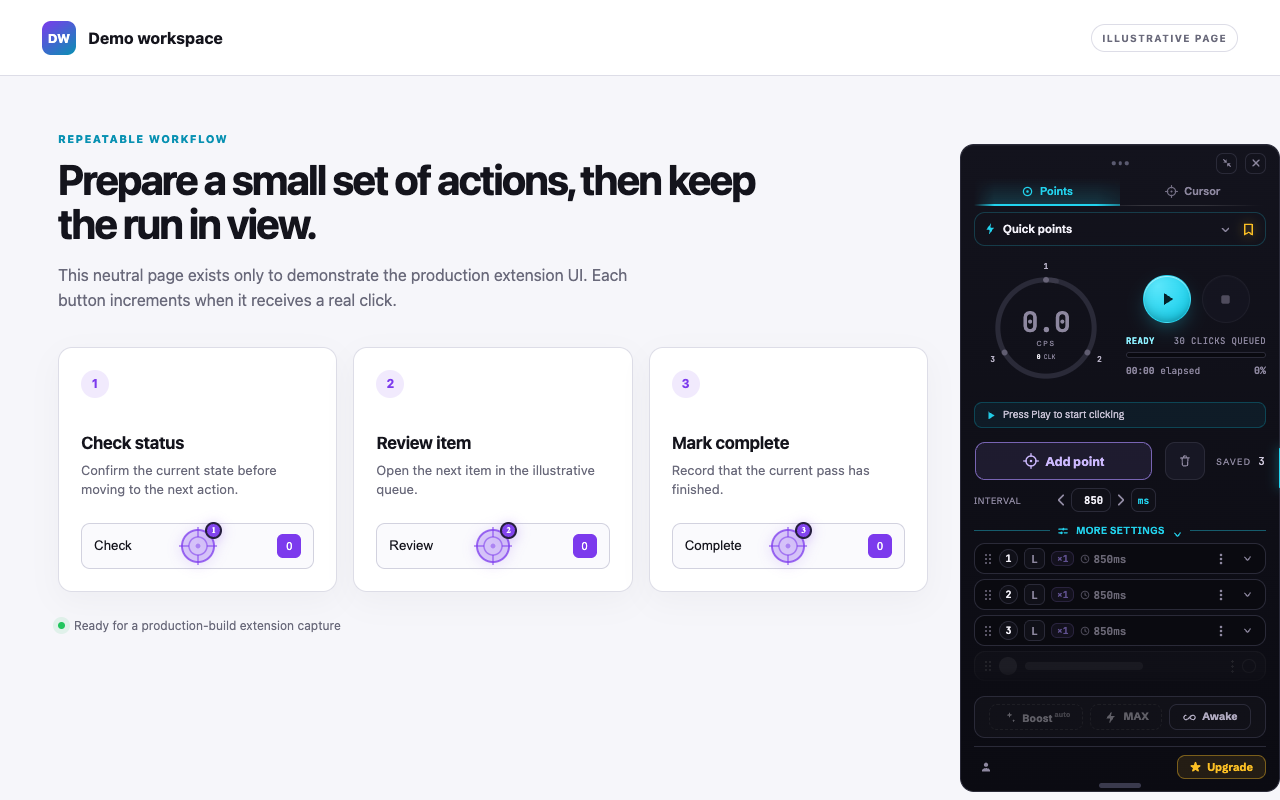
Place targets on a page, run them in order, and adjust without breaking your flow. The active controls stay next to the work.
One visible loop
The interface follows the job: select the places that matter, start the loop, then keep an eye on the live state without leaving the page.
Instrument, not interruption
Open the full panel to build a run, keep the mini player nearby while it works, or collapse to the edge tab when the page needs the space.
Targets use page coordinates, so they stay with the content as you scroll.
A same-tab reload restores the working draft stopped, ready for you to decide when to continue.
Set the interval and optionally vary the timing with Humanize from the same surface.
Two ways to aim
Use point mode for repeatable paths. Switch to cursor mode when the next click should follow wherever you move.
Build an ordered path of visible targets and tune each run from the panel.
Keep the click action attached to your current pointer position.
Start with one page
The quick guide covers points, the on-page player, shortcuts, saved sequences, and supported page boundaries.